<?xml version="1.0" encoding="utf-8"?><feed xmlns="http://www.w3.org/2005/Atom" ><generator uri="https://jekyllrb.com/" version="3.10.0">Jekyll</generator><link href="https://jianlianggao.github.io/feed.xml" rel="self" type="application/atom+xml" /><link href="https://jianlianggao.github.io/" rel="alternate" type="text/html" /><updated>2026-10-26T11:59:13+00:00</updated><id>https://jianlianggao.github.io/feed.xml</id><title type="html">Jianliang Gao</title><subtitle>Senior Teaching Fellow at ECRI &amp; Business School &lt;br&gt; Imperial College London</subtitle><entry><title type="html">PostgreSQL queries performance</title><link href="https://jianlianggao.github.io/psql-query-performance/" rel="alternate" type="text/html" title="PostgreSQL queries performance" /><published>2020-04-07T00:00:00+00:00</published><updated>2020-04-07T00:00:00+00:00</updated><id>https://jianlianggao.github.io/psql-query-performance</id><content type="html" xml:base="https://jianlianggao.github.io/psql-query-performance/"><![CDATA[<p>This is a glimpse of PostgreSQL queries performance based-on some basic practice on DELETE queries. The tests of the queries were implemented in Python and run on a PostgreSQL database installed on a VM (2 Intel Xeon CPU E5-2690 v3 @ 2.60GHz CPUs, 4GB RAM, Ubuntu 18.04 LTS bionic).</p>

<h3 id="a-python-script-for-deleting-items-from-tables">A Python script for deleting items from tables.</h3>

<p>To completely delete a user record in XNAT database, items from 6 tables need to be deleted.</p>

<p>At the beginning, I manually ran DELETE queries in a terminal connecting to the PostgreSQL database. Then I started thinking if I could run the 6 DELETE 
queries in one go to delete each inactive user, my job would be much easier. After a bit research, a Python library named <code class="language-plaintext highlighter-rouge">psycopg2</code> was found to satisfy my job. A Python script was immediately written as</p>

<div class="language-plaintext highlighter-rouge"><div class="highlight"><pre class="highlight"><code>import psycopg2, sys

args = sys.argv
if (len(args) &lt;3 ):
    print('user_id and user_email are required!')
    exit(0)
user_id = sys.argv[1]
user_email = sys.argv[2]

# 6 SQL quueries need to be done for delete a user from the XNAT db
del1 = "delete from xdat_user where login='"+user_id+"'"
del2 = "delete from xhbm_user_registration_data where login='"+user_id+"'"
del3 = "delete from xs_item_cache where contents like '%"+user_id+"%' AND contents like '%"+user_email+"%'"
del4 = "delete from xhbm_xdat_user_auth where auth_user='"+user_id+"'"
del5 = "delete from xhbm_alias_token where xdat_user_id='"+user_id+"'"
del6 = "delete from xdat_user_history where login='"+user_id+"'"

try:
    connection = psycopg2.connect(host='my host ip', database='xnat', user=&lt;user&gt;, password=&lt;password&gt;, port=&lt;port number&gt;)
    cursor = connection.cursor()
    cursor.execute(del1)
    connection.commit()

    print('1. Deleted from xdat_user')
    cursor.execute(del2)
    connection.commit()
    print('2. Deleted from xhbm_user_registration_data')
    cursor.execute(del3)
    connection.commit()
    print('3. Deleted from xs_item_cache')
    cursor.execute(del4)
    connection.commit()
    print('4. Deleted from xhbm_xdat_user_auth')
    cursor.execute(del5)
    connection.commit()
    print('5. Deleted from  xhbm_alias_token')
    cursor.execute(del6)
    connection.commit()
    print('6. Deleted from  xdat_user_history')
except (Exception, psycopg2.Error) as error :
    print ("Error while getting data from PostgreSQL", error)

finally:
    if(connection):
        cursor.close()
        connection.close()
        print('db connection closed.')
</code></pre></div></div>

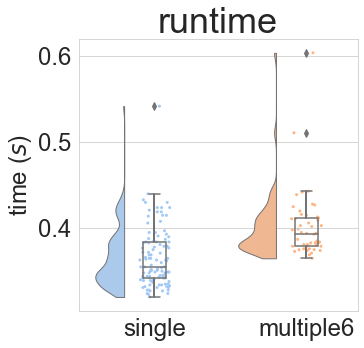
<p>After a few runs, I had an idea. I wanted to observe how much differece between 6 queries within one db connection and 6 queries in 6 separate db connection. Then I did 107 runs with the script above, and 50 other runs with the script below.</p>

<div class="language-plaintext highlighter-rouge"><div class="highlight"><pre class="highlight"><code>import psycopg2, sys

args = sys.argv
if (len(args) &lt;3 ):
    print('user_id and user_email are required!')
    exit(0)
user_id = sys.argv[1]
user_email = sys.argv[2]

# 6 SQL quueries need to be done for delete a user from the XNAT db
del1 = "delete from xdat_user where login='"+user_id+"'"
del2 = "delete from xhbm_user_registration_data where login='"+user_id+"'"
del3 = "delete from xs_item_cache where contents like '%"+user_id+"%' AND contents like '%"+user_email+"%'"
del4 = "delete from xhbm_xdat_user_auth where auth_user='"+user_id+"'"
del5 = "delete from xhbm_alias_token where xdat_user_id='"+user_id+"'"
del6 = "delete from xdat_user_history where login='"+user_id+"'"

try:
    connection = psycopg2.connect(host='my host ip', database='xnat', user=&lt;user&gt;, password=&lt;password&gt;, port=&lt;port number&gt;)
    cursor = connection.cursor()
    cursor.execute(del1)
    connection.commit()
    
except (Exception, psycopg2.Error) as error :
    print ("Error while getting data from PostgreSQL", error)

finally:
    if(connection):
        cursor.close()
        connection.close()
        print('1. Deleted from xdat_user')
        
try:
    connection = psycopg2.connect(host='my host ip', database='xnat', user=&lt;user&gt;, password=&lt;password&gt;, port=&lt;port number&gt;)
    cursor = connection.cursor()
    cursor.execute(del2)
    connection.commit()

except (Exception, psycopg2.Error) as error :
    print ("Error while getting data from PostgreSQL", error)

finally:
    if(connection):
        cursor.close()
        connection.close()
        print('2. Deleted from xhbm_user_registration_data')

try:
    connection = psycopg2.connect(host='my host ip', database='xnat', user=&lt;user&gt;, password=&lt;password&gt;, port=&lt;port number&gt;)
    cursor = connection.cursor()
    cursor.execute(del3)
    connection.commit()

except (Exception, psycopg2.Error) as error :
    print ("Error while getting data from PostgreSQL", error)

finally:
    if(connection):
        cursor.close()
        connection.close()
        print('3. Deleted from xs_item_cache')

try:
    connection = psycopg2.connect(host='my host ip', database='xnat', user=&lt;user&gt;, password=&lt;password&gt;, port=&lt;port number&gt;)
    cursor = connection.cursor()
    cursor.execute(del4)
    connection.commit()

except (Exception, psycopg2.Error) as error :
    print ("Error while getting data from PostgreSQL", error)

finally:
    if(connection):
        cursor.close()
        connection.close()
        print('4. Deleted from xhbm_xdat_user_auth')
try:
    connection = psycopg2.connect(host='my host ip', database='xnat', user=&lt;user&gt;, password=&lt;password&gt;, port=&lt;port number&gt;)
    cursor = connection.cursor()
    cursor.execute(del5)
    connection.commit()

except (Exception, psycopg2.Error) as error :
    print ("Error while getting data from PostgreSQL", error)

finally:
    if(connection):
        cursor.close()
        connection.close()
        print('5. Deleted from  xhbm_alias_token')

try:
    connection = psycopg2.connect(host='my host ip', database='xnat', user=&lt;user&gt;, password=&lt;password&gt;, port=&lt;port number&gt;)
    cursor = connection.cursor()
    cursor.execute(del6)
    connection.commit()

except (Exception, psycopg2.Error) as error :
    print ("Error while getting data from PostgreSQL", error)

finally:
    if(connection):
        cursor.close()
        connection.close()
        print('6. Deleted from xdat_user_history')
</code></pre></div></div>

<p><img src="/figures/psql_performance.png" alt="SQL queries perforamce" /></p>

<p>ANOVA (<code class="language-plaintext highlighter-rouge">from statsmodels.formula.api import ols</code>) had output as</p>
<div class="language-plaintext highlighter-rouge"><div class="highlight"><pre class="highlight"><code>             df    sum_sq   mean_sq          F        PR(&gt;F)
Queries     1.0  0.043661  0.043661  33.267452  4.226861e-08
Residual  155.0  0.203425  0.001312        NaN           NaN
</code></pre></div></div>

<p>It is an easy conclusion because the p-value (4.226861e-08) &lt; 0.05 suggested to reject the null hypothesis. The mean time of 6 separate db connections is about 10% slower than that of single db connection.</p>]]></content><author><name>Jianliang</name></author><summary type="html"><![CDATA[This is a glimpse of PostgreSQL queries performance based-on some basic practice on DELETE queries. The tests of the queries were implemented in Python and run on a PostgreSQL database installed on a VM (2 Intel Xeon CPU E5-2690 v3 @ 2.60GHz CPUs, 4GB RAM, Ubuntu 18.04 LTS bionic). A Python script for deleting items from tables.]]></summary></entry><entry><title type="html">Galaxy Local Deployment to Launch Docker Container(s)</title><link href="https://jianlianggao.github.io/Galaxy-local-deploy-docker-tool/" rel="alternate" type="text/html" title="Galaxy Local Deployment to Launch Docker Container(s)" /><published>2020-02-28T00:00:00+00:00</published><updated>2020-02-28T00:00:00+00:00</updated><id>https://jianlianggao.github.io/Galaxy-local-deploy-docker-tool</id><content type="html" xml:base="https://jianlianggao.github.io/Galaxy-local-deploy-docker-tool/"><![CDATA[<p>Galaxy local deployment was tested on my local computer with Ubuntu 16.04 LTS and remote VM with Ubuntu 18.04 LTS. The following tutorial is based on Ubuntu 18.04.4 LTS (bionic).</p>

<h2 id="step-1-preparation-your-local-system">Step 1. Preparation your local system</h2>

<p>Firstly, you need to have your system ready.</p>

<h3 id="have-docker-ce-installed-and-configured-on-your-system">Have Docker-ce installed and configured on your system.</h3>

<p>My tool was encapsulated in a Docker image, and my local Galaxy instance aimed to run my tool with Docker engine. Therefore I needed Docker daemon running on my local system before I launched Galaxy instance.</p>

<p>Following instructions from Digital Ocean (<a href="https://www.digitalocean.com/community/tutorials/how-to-install-and-use-docker-on-ubuntu-18-04">https://www.digitalocean.com/community/tutorials/how-to-install-and-use-docker-on-ubuntu-18-04</a>) to install Docker-ce on your system. Here I simply duplicate the key steps.</p>

<ol>
  <li>
    <p>sudo apt update &amp;&amp; sudo apt install apt-transport-https ca-certificates curl software-properties-common</p>
  </li>
  <li>
    <table>
      <tbody>
        <tr>
          <td>curl -fsSL https://download.docker.com/linux/ubuntu/gpg</td>
          <td>sudo apt-key add -</td>
        </tr>
      </tbody>
    </table>
  </li>
  <li>
    <p>sudo add-apt-repository “deb [arch=amd64] https://download.docker.com/linux/ubuntu bionic stable” &amp;&amp; sudo apt update</p>
  </li>
  <li>
    <p>sudo apt install docker-ce</p>
  </li>
  <li>
    <p>sudo  usermod -aG docker ${USER}
  (<strong>NOTE:</strong> immediately after this command, you can run “docker images” in your current user (not root user) to check if your user has permissions to run docker. If you have such error “Got permission denied while trying to connect to the Docker daemon socket at unix:///var/run/docker.sock:” , you need to logout and login again to re-check. If you still don’t have permission to run docker, use the following command to add your user into docker group <code class="language-plaintext highlighter-rouge">sudo gpasswd -a ubuntu docker</code>. Logout and login are needed immediately after the above command. You may also need to run <code class="language-plaintext highlighter-rouge">sudo systemctl restart docker</code> after login again.)</p>
  </li>
  <li>To insure Galaxy instance can run docker with galaxy users, you need to modify the file <code class="language-plaintext highlighter-rouge">/etc/sudoers and</code> add the following line into it.</li>
</ol>

<p><code class="language-plaintext highlighter-rouge">galaxy ALL = (root) NOPASSWD: SETENV: /usr/bin/docker</code></p>

<p>Your system is now ready to deploy Galaxy.</p>

<h2 id="step-2-clone-galaxy-project-and-deploy-locally">Step 2. Clone Galaxy project and deploy locally.</h2>

<p>1. git clone Galaxy from Galaxy project GitHub <a href="https://github.com/galaxyproject/galaxy.git">https://github.com/galaxyproject/galaxy.git</a> (<strong>NOTE:</strong> I tested on 2 ext4 partitions and 1 ntfs partition. The test on ntfs partition failed)</p>

<p>2. Enter galaxy directory and copy <code class="language-plaintext highlighter-rouge">config/galaxy.yml.sample</code> as <code class="language-plaintext highlighter-rouge">config/galaxy.yml</code>.</p>

<p>3. In galaxy direcotry, copy <code class="language-plaintext highlighter-rouge">config/job_conf.xml.sample_basic</code> as <code class="language-plaintext highlighter-rouge">config/job_conf.xml</code> and edit the configuration file as follows.</p>

<div class="language-xml highlighter-rouge"><div class="highlight"><pre class="highlight"><code><span class="cp">&lt;?xml version="1.0"?&gt;</span>
<span class="c">&lt;!-- A sample job config that explicitly configures job running the way it is
     configured by default (if there is no explicit config). --&gt;</span>
<span class="nt">&lt;job_conf&gt;</span>
    <span class="nt">&lt;plugins&gt;</span>
        <span class="nt">&lt;plugin</span> <span class="na">id=</span><span class="s">"local"</span> <span class="na">type=</span><span class="s">"runner"</span> <span class="na">load=</span><span class="s">"galaxy.jobs.runners.local:LocalJobRunner"</span> <span class="na">workers=</span><span class="s">"1"</span><span class="nt">/&gt;</span>
    <span class="nt">&lt;/plugins&gt;</span>
    <span class="nt">&lt;destinations</span> <span class="na">default=</span><span class="s">"local"</span><span class="nt">&gt;</span>
        <span class="nt">&lt;destination</span> <span class="na">id=</span><span class="s">"local"</span> <span class="na">runner=</span><span class="s">"local"</span><span class="nt">/&gt;</span>
        <span class="nt">&lt;destination</span> <span class="na">id=</span><span class="s">"docker_local"</span> <span class="na">runner=</span><span class="s">"local"</span><span class="nt">&gt;</span>
          <span class="nt">&lt;param</span> <span class="na">id=</span><span class="s">"docker_enabled"</span><span class="nt">&gt;</span>true<span class="nt">&lt;/param&gt;</span>
        <span class="nt">&lt;/destination&gt;</span>

        <span class="nt">&lt;destination</span> <span class="na">id=</span><span class="s">"&lt;your tool id&gt;-container"</span> <span class="na">runner=</span><span class="s">"local"</span><span class="nt">&gt;</span>
           <span class="nt">&lt;param</span> <span class="na">id=</span><span class="s">"docker_enabled"</span><span class="nt">&gt;</span>true<span class="nt">&lt;/param&gt;</span>
           <span class="nt">&lt;param</span> <span class="na">id=</span><span class="s">"docker_volumes"</span><span class="nt">&gt;</span>$defaults<span class="nt">&lt;/param&gt;</span> --&gt;
           <span class="nt">&lt;param</span> <span class="na">id=</span><span class="s">"docker_sudo"</span><span class="nt">&gt;</span>false<span class="nt">&lt;/param&gt;</span>
           <span class="nt">&lt;param</span> <span class="na">id=</span><span class="s">"docker_auto_rm"</span><span class="nt">&gt;</span>true<span class="nt">&lt;/param&gt;</span>
        <span class="nt">&lt;/destination&gt;</span>

    <span class="nt">&lt;/destinations&gt;</span>
    <span class="nt">&lt;tools&gt;</span>

     <span class="nt">&lt;tool</span> <span class="na">id=</span><span class="s">"&lt;your tool id&gt;"</span> <span class="na">destination=</span><span class="s">"&lt;your tool id&gt;-container"</span><span class="nt">/&gt;</span>
    <span class="nt">&lt;/tools&gt;</span>
<span class="nt">&lt;/job_conf&gt;</span>
</code></pre></div></div>

<p>4. Edit <code class="language-plaintext highlighter-rouge">config/tool_conf.xml</code> by adding your tool, which allows Galay to list your tool on the left-hand side panel. For example,</p>

<div class="language-xml highlighter-rouge"><div class="highlight"><pre class="highlight"><code><span class="cp">&lt;?xml version="1.0"?&gt;</span>
  <span class="c">&lt;!-- other tools --&gt;</span>
  <span class="nt">&lt;section</span> <span class="na">id=</span><span class="s">"&lt;your tool&gt;-tool"</span> <span class="na">name=</span><span class="s">"Name of your tool"</span><span class="nt">&gt;</span>
     <span class="nt">&lt;tool</span> <span class="na">file=</span><span class="s">"&lt;path to&gt;/&lt;your tool&gt;.xml"</span> <span class="nt">/&gt;</span>
</code></pre></div></div>

<p><strong>NOTE:</strong> path to your tool needs to be subdirectory in <code class="language-plaintext highlighter-rouge">galaxy/tools</code>. For example, <code class="language-plaintext highlighter-rouge">galaxy/tools/&lt;path to&gt;/&lt;your tool&gt;.xml</code>.</p>

<p>5. Create your tool XML file <code class="language-plaintext highlighter-rouge">galaxy/tools/&lt;path to&gt;/&lt;your tool&gt;.xml</code>, containing the following content as running command lines, input parameters, output parameters and help messages etc.</p>

<div class="language-xml highlighter-rouge"><div class="highlight"><pre class="highlight"><code><span class="nt">&lt;tool</span> <span class="na">id=</span><span class="s">"&lt;your tool id&gt;"</span> <span class="na">name=</span><span class="s">"&lt;Tool name&gt; (in docker)"</span><span class="nt">&gt;</span>
    <span class="nt">&lt;description&gt;</span>Metabo Flow<span class="nt">&lt;/description&gt;</span>
    <span class="nt">&lt;requirements&gt;</span>
      <span class="nt">&lt;container</span> <span class="na">type=</span><span class="s">"docker"</span><span class="nt">&gt;</span>docker_hub_id/tool_docker_name:tag<span class="nt">&lt;/container&gt;</span>
    <span class="nt">&lt;/requirements&gt;</span>
    <span class="nt">&lt;command&gt;</span><span class="cp">&lt;![CDATA[
      &lt;entrypoint&gt;</span> <span class="nt">&lt;inputs</span> <span class="err">${testdata_input}</span> <span class="err">${pre_define_sd}</span><span class="nt">&gt;</span> -o outputs
     ]]&gt;
    <span class="nt">&lt;/command&gt;</span>
    <span class="nt">&lt;inputs&gt;</span>
       <span class="nt">&lt;param</span> <span class="na">name=</span><span class="s">"testdata_input"</span>  <span class="na">type=</span><span class="s">"data"</span> <span class="na">label=</span><span class="s">"Test Dataset"</span> <span class="na">help=</span><span class="s">"."</span> <span class="nt">/&gt;</span>
        <span class="nt">&lt;param</span> <span class="na">name=</span><span class="s">"pre_define_sd"</span>  <span class="na">type=</span><span class="s">"data"</span>  <span class="na">label=</span><span class="s">"Pre-defined standard deviation matrix"</span> <span class="nt">/&gt;</span>
    <span class="nt">&lt;/inputs&gt;</span>
    <span class="nt">&lt;outputs&gt;</span>
         <span class="nt">&lt;data</span> <span class="na">name=</span><span class="s">"data_long"</span> <span class="na">format=</span><span class="s">"csv"</span> <span class="na">from_work_dir=</span><span class="s">"outputs/data_long.csv"</span> <span class="na">label=</span><span class="s">"data_long.csv"</span><span class="nt">/&gt;</span>
         <span class="nt">&lt;data</span> <span class="na">name=</span><span class="s">"data_wide"</span> <span class="na">format=</span><span class="s">"csv"</span> <span class="na">from_work_dir=</span><span class="s">"outputs/data_wide.csv"</span> <span class="na">label=</span><span class="s">"data_wide.csv"</span><span class="nt">/&gt;</span>
         <span class="nt">&lt;data</span> <span class="na">name=</span><span class="s">"data_wide_Symb"</span> <span class="na">format=</span><span class="s">"csv"</span> <span class="na">from_work_dir=</span><span class="s">"outputs/data_wide_Symb.csv"</span> <span class="na">label=</span><span class="s">"data_wide_Symb.csv"</span><span class="nt">/&gt;</span>
         <span class="nt">&lt;data</span> <span class="na">name=</span><span class="s">"stats_median_batch_corrected_data"</span> <span class="na">format=</span><span class="s">"txt"</span> <span class="na">from_work_dir=</span><span class="s">"outputs/stats_median_batch_corrected_data.txt"</span> <span class="na">label=</span><span class="s">"stats_median_batch_corrected_data.txt"</span><span class="nt">/&gt;</span>
         <span class="nt">&lt;data</span> <span class="na">name=</span><span class="s">"stats_outliers"</span> <span class="na">format=</span><span class="s">"txt"</span> <span class="na">from_work_dir=</span><span class="s">"outputs/stats_outliers.txt"</span> <span class="na">label=</span><span class="s">"stats_outliers.txt"</span><span class="nt">/&gt;</span>
         <span class="nt">&lt;data</span> <span class="na">name=</span><span class="s">"stats_raw_data"</span> <span class="na">format=</span><span class="s">"txt"</span> <span class="na">from_work_dir=</span><span class="s">"outputs/stats_raw_data.txt"</span> <span class="na">label=</span><span class="s">"stats_raw_data.txt"</span><span class="nt">/&gt;</span>
         <span class="nt">&lt;data</span> <span class="na">name=</span><span class="s">"stats_standardised_data"</span> <span class="na">format=</span><span class="s">"txt"</span> <span class="na">from_work_dir=</span><span class="s">"outputs/stats_standardised_data.txt"</span> <span class="na">label=</span><span class="s">"stats_standardised_data.txt"</span><span class="nt">/&gt;</span>
         <span class="nt">&lt;data</span> <span class="na">name=</span><span class="s">"plot_logConcentration_by_batch"</span> <span class="na">format=</span><span class="s">"pdf"</span> <span class="na">from_work_dir=</span><span class="s">"outputs/plot_logConcentration_by_batch.pdf"</span> <span class="na">label=</span><span class="s">"plot_logConcentration_by_batch.pdf"</span><span class="nt">/&gt;</span>
         <span class="nt">&lt;data</span> <span class="na">name=</span><span class="s">"plot_logConcentration_z_scores"</span> <span class="na">format=</span><span class="s">"pdf"</span> <span class="na">from_work_dir=</span><span class="s">"outputs/plot_logConcentration_z_scores.pdf"</span> <span class="na">label=</span><span class="s">"plot_logConcentration_z_scores.pdf"</span><span class="nt">/&gt;</span>
    <span class="nt">&lt;/outputs&gt;</span>

    <span class="nt">&lt;help&gt;</span>
    <span class="nt">&lt;/help&gt;</span>
<span class="nt">&lt;/tool&gt;</span>
</code></pre></div></div>

<h2 id="step-3-run-deployment-command-sh-runsh-in-galaxy-directory">Step 3. Run deployment command <code class="language-plaintext highlighter-rouge">sh run.sh</code> in galaxy directory.</h2>

<p><strong>NOTE:</strong> If you deploy Galaxy instance on a VM on cluster or cloud, you may need a reverse proxy to access your Galaxy instance from a remote web browser, because by default settings, Galaxy instance listens to localhost (127.0.0.1) at port 8080.</p>]]></content><author><name>Jianliang</name></author><summary type="html"><![CDATA[Galaxy local deployment was tested on my local computer with Ubuntu 16.04 LTS and remote VM with Ubuntu 18.04 LTS. The following tutorial is based on Ubuntu 18.04.4 LTS (bionic). Step 1. Preparation your local system]]></summary></entry><entry><title type="html">Introduce to dHCP</title><link href="https://jianlianggao.github.io/dHCP-intro/" rel="alternate" type="text/html" title="Introduce to dHCP" /><published>2018-01-21T00:00:00+00:00</published><updated>2018-01-21T00:00:00+00:00</updated><id>https://jianlianggao.github.io/dHCP-intro</id><content type="html" xml:base="https://jianlianggao.github.io/dHCP-intro/"><![CDATA[<h2 id="dhcp--the-developing-human-connectome-project">dHCP – The Developing Human Connectome Project</h2>

<p>The Developing Human Connectome Project (dHCP), led by King’s College London, Imperial College London and Oxford University, aims to make major scientific progress by creating the first 4-dimensional connectome of early life. Our goal is to create a dynamic map of human brain connectivity from 20 to 44 weeks post-conceptional age, which will link together imaging, clinical, behavioural, and genetic information. This unique setting, with imaging and collateral data in an expandable open-source informatics structure, will permit wide use by the scientific community, and to undertake pioneer studies into normal and abnormal development by studying well-phenotyped and genotyped group of infants with specific genetic and environmental risks that could lead to Autistic Spectrum Disorder or Cerebral Palsy.</p>

<h2 id="for-more-detail-please-visit-httpwwwdevelopingconnectomeorg">for more detail, please visit: <a href="http://www.developingconnectome.org">http://www.developingconnectome.org</a></h2>]]></content><author><name>Jianliang</name></author><summary type="html"><![CDATA[dHCP – The Developing Human Connectome Project The Developing Human Connectome Project (dHCP), led by King’s College London, Imperial College London and Oxford University, aims to make major scientific progress by creating the first 4-dimensional connectome of early life. Our goal is to create a dynamic map of human brain connectivity from 20 to 44 weeks post-conceptional age, which will link together imaging, clinical, behavioural, and genetic information. This unique setting, with imaging and collateral data in an expandable open-source informatics structure, will permit wide use by the scientific community, and to undertake pioneer studies into normal and abnormal development by studying well-phenotyped and genotyped group of infants with specific genetic and environmental risks that could lead to Autistic Spectrum Disorder or Cerebral Palsy. for more detail, please visit: http://www.developingconnectome.org]]></summary></entry><entry><title type="html">KubeNow deployment Demo on Azure</title><link href="https://jianlianggao.github.io/KubeNow-Demo-Azure/" rel="alternate" type="text/html" title="KubeNow deployment Demo on Azure" /><published>2017-08-04T00:00:00+00:00</published><updated>2017-08-04T00:00:00+00:00</updated><id>https://jianlianggao.github.io/KubeNow-Demo-Azure</id><content type="html" xml:base="https://jianlianggao.github.io/KubeNow-Demo-Azure/"><![CDATA[<ul>
  <li>Luigi and Jupyter notebook demo on Azure.</li>
</ul>

<p>We have kept a series of screen recording of KubeNow deployment on Azure.</p>

<p>(1) Deployment of KubeNow with Galaxy, Jupyter notebook and Luigi. The length of this video is about 30 minutes. You don’t need to follow it all the way through, otherwise you will feel bored.<a href="https://www.youtube.com/watch?v=nTfClmIwe8Y">https://www.youtube.com/watch?v=nTfClmIwe8Y</a></p>

<p>(2) Access to deployed Jupyter notebook. <a href="https://www.youtube.com/watch?v=k1R1gNPl1ZA">https://www.youtube.com/watch?v=k1R1gNPl1ZA</a></p>

<p>(3) Interface of Jupyter notebook. <a href="https://www.youtube.com/watch?v=UmJUH1TmJb4">https://www.youtube.com/watch?v=UmJUH1TmJb4</a></p>

<p>(4) Luigi GUI associated with Jupyter notebook. <a href="https://www.youtube.com/watch?v=I84HlDMCF_c">https://www.youtube.com/watch?v=I84HlDMCF_c</a> The demo didn’t run properly as a setting for Luigi wasn’t correct.</p>

<p>(5) PAPY demo with correct Luigi settings. <a href="https://www.youtube.com/watch?v=J46Ljl4KYeU">https://www.youtube.com/watch?v=J46Ljl4KYeU</a> and <a href="https://www.youtube.com/watch?v=wNqt4kABgTk">https://www.youtube.com/watch?v=wNqt4kABgTk</a></p>

<ul>
  <li>Galaxy instance demo on Azure</li>
</ul>

<p>This is a demo for Galaxy instance by running PAPY and BATMAN tools.</p>]]></content><author><name>Jianliang</name></author><summary type="html"><![CDATA[Luigi and Jupyter notebook demo on Azure. We have kept a series of screen recording of KubeNow deployment on Azure. (1) Deployment of KubeNow with Galaxy, Jupyter notebook and Luigi. The length of this video is about 30 minutes. You don’t need to follow it all the way through, otherwise you will feel bored.https://www.youtube.com/watch?v=nTfClmIwe8Y (2) Access to deployed Jupyter notebook. https://www.youtube.com/watch?v=k1R1gNPl1ZA (3) Interface of Jupyter notebook. https://www.youtube.com/watch?v=UmJUH1TmJb4 (4) Luigi GUI associated with Jupyter notebook. https://www.youtube.com/watch?v=I84HlDMCF_c The demo didn’t run properly as a setting for Luigi wasn’t correct. (5) PAPY demo with correct Luigi settings. https://www.youtube.com/watch?v=J46Ljl4KYeU and https://www.youtube.com/watch?v=wNqt4kABgTk Galaxy instance demo on Azure This is a demo for Galaxy instance by running PAPY and BATMAN tools.]]></summary></entry><entry><title type="html">KubeNow deployment on Azure</title><link href="https://jianlianggao.github.io/KubeNow-on-Azure/" rel="alternate" type="text/html" title="KubeNow deployment on Azure" /><published>2017-07-31T00:00:00+00:00</published><updated>2017-07-31T00:00:00+00:00</updated><id>https://jianlianggao.github.io/KubeNow-on-Azure</id><content type="html" xml:base="https://jianlianggao.github.io/KubeNow-on-Azure/"><![CDATA[<h2 id="initialize-kubenow">Initialize KubeNow</h2>

<p>KubeNow provides one line command deployment of Kubernetes  <a href="https://github.com/jianlianggao/KubeNow-plugin">https://github.com/jianlianggao/KubeNow-plugin</a>. Follow the intruction to download “kn”, the main Kubernetes deployment bash script, and make it executable. It is not necessary to add it into system path. As long as you are comfortable and confident to run it as needed, you can decide wherever to put it.</p>

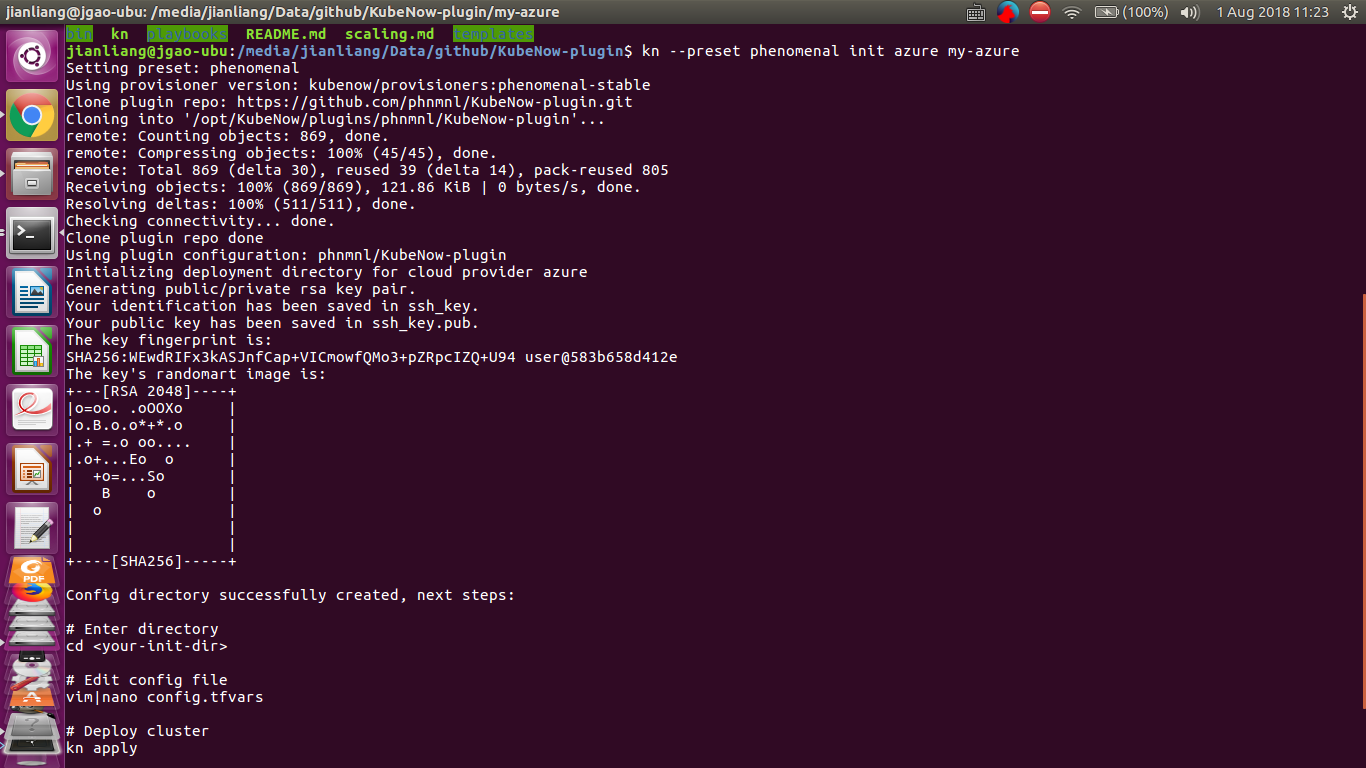
<p>Once you successfully run kn –preset phenomenal init azure <my-vre-config-dir>, you will see like:</my-vre-config-dir></p>

<p><img src="/figures/kubenow_init.png" alt="KubeNow initialization" /></p>

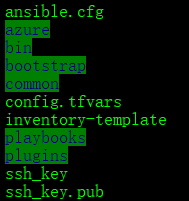
<p>And, in the <my-vre-config-dir>, you should be able see the files and directories listed as follows. Otherwise, there must be something wrong with your initialization. Please check your computer environment such as network connection, permission etc.</my-vre-config-dir></p>

<p><img src="/figures/preset_kube_azure.png" alt="Kubernetes initialization for Azure" /></p>

<p>Now it’s time to create and retrieve the information of your subscription of Azure and modify the “config.tfvars” in the following lines.</p>

<div class="language-plaintext highlighter-rouge"><div class="highlight"><pre class="highlight"><code># Credentials
subscription_id = "your-subscription_id"
client_id       = "your-client_id" # a.k.a. your appId
client_secret   = "your-client_secret" # a.k.a. password
tenant_id       = "your-tenant_id"
</code></pre></div></div>
<p>To obtain your Azure account information, you can either check your Azure portal settings and properties <a href="https://docs.microsoft.com/en-us/azure/azure-resource-manager/resource-group-create-service-principal-portal">https://docs.microsoft.com/en-us/azure/azure-resource-manager/resource-group-create-service-principal-portal</a> or run the “az cli” <a href="https://docs.microsoft.com/en-us/cli/azure/create-an-azure-service-principal-azure-cli?toc=%2Fen-us%2Fazure%2Fazure-resource-manager%2Ftoc.json&amp;bc=%2Fen-us%2Fazure%2Fbread%2Ftoc.json&amp;view=azure-cli-latest">https://docs.microsoft.com/en-us/cli/azure/create-an-azure-service-principal-azure-cli?toc=%2Fen-us%2Fazure%2Fazure-resource-manager%2Ftoc.json&amp;bc=%2Fen-us%2Fazure%2Fbread%2Ftoc.json&amp;view=azure-cli-latest</a></p>

<p>For example, we used “az cli” (Azure CLI. Installation of AZ CLI please check <a href="https://docs.microsoft.com/en-us/cli/azure/install-azure-cli-apt?view=azure-cli-latest">https://docs.microsoft.com/en-us/cli/azure/install-azure-cli-apt?view=azure-cli-latest</a>) to create and retrieve our appId, tenant ID and confidential.</p>

<p>(1) Run “az login” for the first time you will get a return code. Use the returned code to login in the link prompted.</p>

<p>(2) After login successfully, you can run</p>
<div class="language-plaintext highlighter-rouge"><div class="highlight"><pre class="highlight"><code>az ad sp create-for-rbac --role="Owner" --scopes="/subscriptions/&lt;your subscription ID&gt;"
</code></pre></div></div>
<p>You should have return values including “appId”, “password” and “tenant”.</p>

<p>Then you need to modify the following lines in the “config.tfvars” accoriding to your need and the design your Azure cluster. The type of nodes and VMs can be found at (<a href="https://docs.microsoft.com/en-us/azure/virtual-machines/windows/sizes-general">https://docs.microsoft.com/en-us/azure/virtual-machines/windows/sizes-general</a>)</p>

<div class="language-plaintext highlighter-rouge"><div class="highlight"><pre class="highlight"><code># Cluster configuration
cluster_prefix = "your-cluster-prefix" # Your cluster prefix
location = "West Europe"  # Some location according to the the type of VMs you choose for your master, gluster and computing nodes.
 
# Master configuration
master_vm_size = "Standard_DS2_v2" # change this according to your need
 
# Node configuration
node_count = "3"   # change the number of nodes according to your need
node_vm_size = "Standard_DS2_v2" # change this according to your need
 
# Gluster configuration
glusternode_count = "1" # change the number of nodes according to the size of cluster
glusternode_vm_size = "Standard_DS2_v2" # change this according to your need
 
 
.....
# The following passwords need to be set with fairly complicated combination keys.
 "action" = {
    "type"     = "ansible-playbook"
    "playbook" = "plugins/phnmnl/KubeNow-plugin/playbooks/install-phenomenal-playbook.yml"
    "extra_vars" = {
      "galaxy_include"        = "true"
      "galaxy_admin_email"    = "yoourname@bla.bla.com"
      "galaxy_admin_password" = "YVeciekOpe!@"
      "jupyter_include"       = "true"
      "jupyter_password"      = "VNidieKOEy#!"
      "luigi_include"         = "true"
      "luigi_username"        = "admin"
      "luigi_password"        = "reTEiopLnuuQ"
      "dashboard_include"     = "false"
      "dashboard_username"    = "admin"
      "dashboard_password"    = "@£$556YuendK"
    }
  }
</code></pre></div></div>]]></content><author><name>Jianliang</name></author><summary type="html"><![CDATA[Initialize KubeNow KubeNow provides one line command deployment of Kubernetes https://github.com/jianlianggao/KubeNow-plugin. Follow the intruction to download “kn”, the main Kubernetes deployment bash script, and make it executable. It is not necessary to add it into system path. As long as you are comfortable and confident to run it as needed, you can decide wherever to put it. Once you successfully run kn –preset phenomenal init azure , you will see like: And, in the , you should be able see the files and directories listed as follows. Otherwise, there must be something wrong with your initialization. Please check your computer environment such as network connection, permission etc. Now it’s time to create and retrieve the information of your subscription of Azure and modify the “config.tfvars” in the following lines. # Credentials subscription_id = "your-subscription_id" client_id = "your-client_id" # a.k.a. your appId client_secret = "your-client_secret" # a.k.a. password tenant_id = "your-tenant_id" To obtain your Azure account information, you can either check your Azure portal settings and properties https://docs.microsoft.com/en-us/azure/azure-resource-manager/resource-group-create-service-principal-portal or run the “az cli” https://docs.microsoft.com/en-us/cli/azure/create-an-azure-service-principal-azure-cli?toc=%2Fen-us%2Fazure%2Fazure-resource-manager%2Ftoc.json&amp;bc=%2Fen-us%2Fazure%2Fbread%2Ftoc.json&amp;view=azure-cli-latest For example, we used “az cli” (Azure CLI. Installation of AZ CLI please check https://docs.microsoft.com/en-us/cli/azure/install-azure-cli-apt?view=azure-cli-latest) to create and retrieve our appId, tenant ID and confidential. (1) Run “az login” for the first time you will get a return code. Use the returned code to login in the link prompted. (2) After login successfully, you can run az ad sp create-for-rbac --role="Owner" --scopes="/subscriptions/&lt;your subscription ID&gt;" You should have return values including “appId”, “password” and “tenant”. Then you need to modify the following lines in the “config.tfvars” accoriding to your need and the design your Azure cluster. The type of nodes and VMs can be found at (https://docs.microsoft.com/en-us/azure/virtual-machines/windows/sizes-general) # Cluster configuration cluster_prefix = "your-cluster-prefix" # Your cluster prefix location = "West Europe" # Some location according to the the type of VMs you choose for your master, gluster and computing nodes. # Master configuration master_vm_size = "Standard_DS2_v2" # change this according to your need # Node configuration node_count = "3" # change the number of nodes according to your need node_vm_size = "Standard_DS2_v2" # change this according to your need # Gluster configuration glusternode_count = "1" # change the number of nodes according to the size of cluster glusternode_vm_size = "Standard_DS2_v2" # change this according to your need ..... # The following passwords need to be set with fairly complicated combination keys. "action" = { "type" = "ansible-playbook" "playbook" = "plugins/phnmnl/KubeNow-plugin/playbooks/install-phenomenal-playbook.yml" "extra_vars" = { "galaxy_include" = "true" "galaxy_admin_email" = "yoourname@bla.bla.com" "galaxy_admin_password" = "YVeciekOpe!@" "jupyter_include" = "true" "jupyter_password" = "VNidieKOEy#!" "luigi_include" = "true" "luigi_username" = "admin" "luigi_password" = "reTEiopLnuuQ" "dashboard_include" = "false" "dashboard_username" = "admin" "dashboard_password" = "@£$556YuendK" } }]]></summary></entry><entry><title type="html">Introduce to PhenoMeNal</title><link href="https://jianlianggao.github.io/PhenoMeNal-intro/" rel="alternate" type="text/html" title="Introduce to PhenoMeNal" /><published>2017-07-21T00:00:00+00:00</published><updated>2017-07-21T00:00:00+00:00</updated><id>https://jianlianggao.github.io/PhenoMeNal-intro</id><content type="html" xml:base="https://jianlianggao.github.io/PhenoMeNal-intro/"><![CDATA[<h2 id="phenomenal--large-scale-computing-for-medical-metabolomics">PhenoMeNal – Large Scale Computing for Medical Metabolomics</h2>

<p>PhenoMeNal (Phenome and Metabolome aNalysis) is a comprehensive and standardised e-infrastructure that supports the data processing and analysis pipelines for molecular phenotype data generated by metabolomics applications.</p>

<h2 id="objectives">Objectives</h2>

<ul>
  <li>
    <p>To use existing open source community standards, integrate tools, resources and methods for the management, dissemination and computational analysis of very large datasets of human metabolic phenotyping and genomic data into a secure and sustainable e-Infrastructure.</p>
  </li>
  <li>
    <p>To operate and consolidate the PhenoMeNal e-infrastructure based on existing internal and external HPC (High-performance computing), cloud, and grid resources, including the EGI and the EGI Federated Cloud, and to extend it to world-wide computational infrastructures.
To improve and scale-up tools used within the infrastructure to cope with very large datasets.
To establish technology for a water-tight audit trail for the processing of human metabolic phenotyping data from the raw data acquisition all the way to the generation of high-level biomedical insights (such as a medical diagnosis).</p>
  </li>
  <li>
    <p>To establish privacy-protection methods that allow working with highly sensitive molecular phenotype data.</p>
  </li>
  <li>
    <p>To foster the worldwide adoption of PhenoMeNal through a wide range of outreach, dissemination, networking and training activities.</p>
  </li>
  <li>
    <p>To develop a model to ensure sustainability of the PhenoMeNal network.</p>
  </li>
</ul>

<h2 id="for-more-detail-please-visit-httpphenomenal-h2020euhome">for more detail, please visit: <a href="http://phenomenal-h2020.eu/home">http://phenomenal-h2020.eu/home</a></h2>]]></content><author><name>Jianliang</name></author><summary type="html"><![CDATA[PhenoMeNal – Large Scale Computing for Medical Metabolomics PhenoMeNal (Phenome and Metabolome aNalysis) is a comprehensive and standardised e-infrastructure that supports the data processing and analysis pipelines for molecular phenotype data generated by metabolomics applications. Objectives To use existing open source community standards, integrate tools, resources and methods for the management, dissemination and computational analysis of very large datasets of human metabolic phenotyping and genomic data into a secure and sustainable e-Infrastructure. To operate and consolidate the PhenoMeNal e-infrastructure based on existing internal and external HPC (High-performance computing), cloud, and grid resources, including the EGI and the EGI Federated Cloud, and to extend it to world-wide computational infrastructures. To improve and scale-up tools used within the infrastructure to cope with very large datasets. To establish technology for a water-tight audit trail for the processing of human metabolic phenotyping data from the raw data acquisition all the way to the generation of high-level biomedical insights (such as a medical diagnosis). To establish privacy-protection methods that allow working with highly sensitive molecular phenotype data. To foster the worldwide adoption of PhenoMeNal through a wide range of outreach, dissemination, networking and training activities. To develop a model to ensure sustainability of the PhenoMeNal network. for more detail, please visit: http://phenomenal-h2020.eu/home]]></summary></entry><entry><title type="html">You’re up and running!</title><link href="https://jianlianggao.github.io/Hello-World/" rel="alternate" type="text/html" title="You’re up and running!" /><published>2014-03-03T00:00:00+00:00</published><updated>2014-03-03T00:00:00+00:00</updated><id>https://jianlianggao.github.io/Hello-World</id><content type="html" xml:base="https://jianlianggao.github.io/Hello-World/"><![CDATA[<p>Next you can update your site name, avatar and other options using the _config.yml file in the root of your repository (shown below).</p>

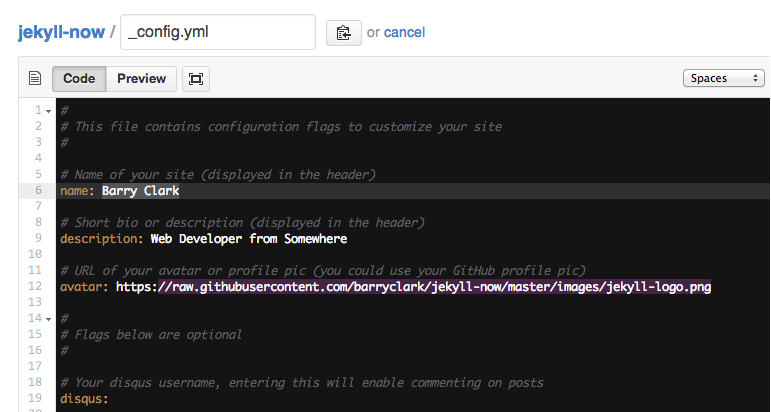
<p><img src="/images/config.png" alt="_config.yml" /></p>

<p>The easiest way to make your first post is to edit this one. Go into /_posts/ and update the Hello World markdown file. For more instructions head over to the <a href="https://github.com/barryclark/jekyll-now">Jekyll Now repository</a> on GitHub.</p>]]></content><author><name></name></author><summary type="html"><![CDATA[Hello world!]]></summary></entry></feed>